Docs › Using Zalosim
Analysis and units
Study a stream's phase behaviour, choose the units you work in, and enter numbers quickly with the keypad.
Phase envelope
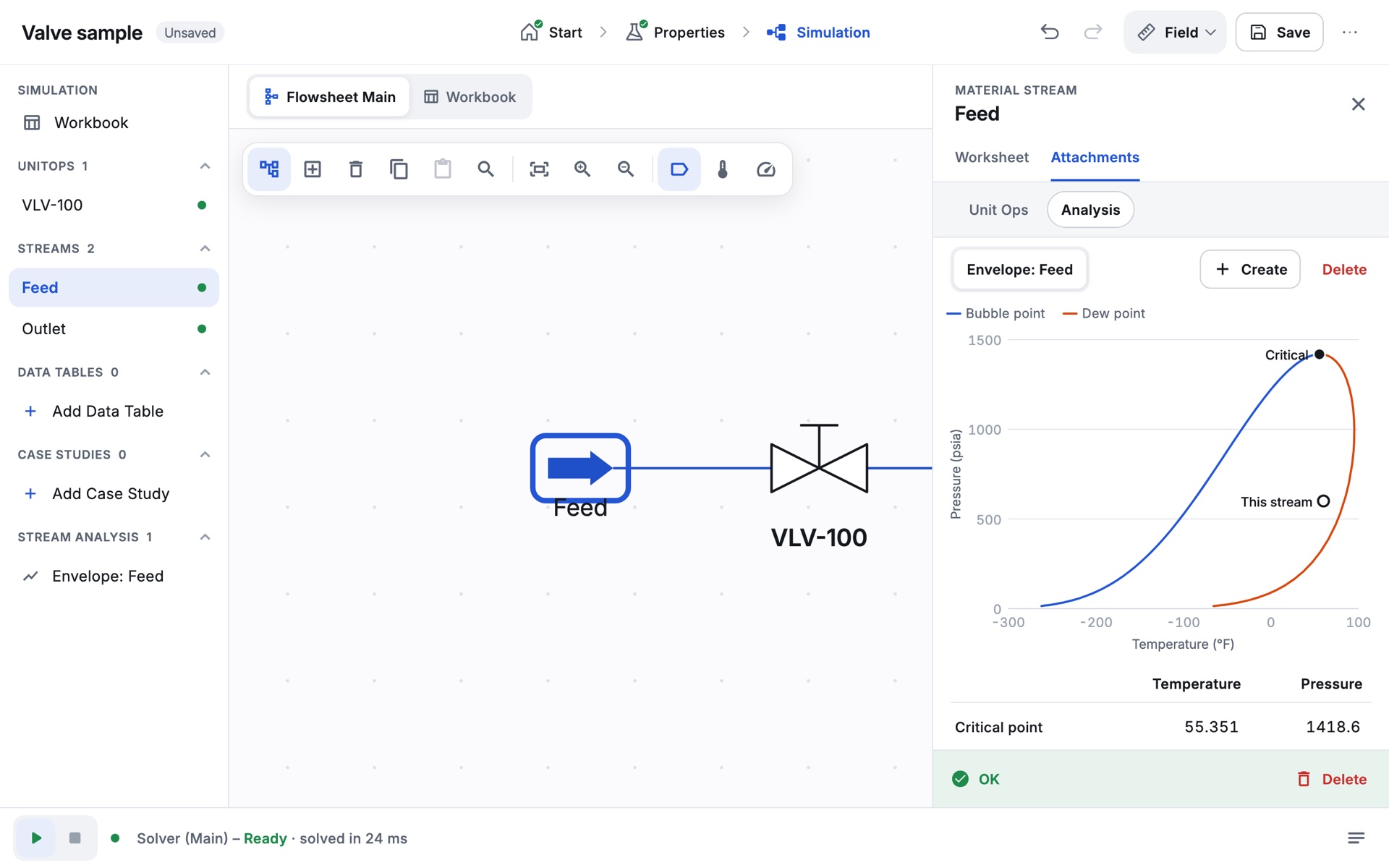
A phase envelope plots the bubble point and dew point curves of a stream's composition on a temperature–pressure chart.
- Open the stream and go to Attachments › Analysis.
- Tap Create and choose Envelope.
- The chart shows the Bubble point and Dew point curves, the Critical point and a ring for This stream at its own temperature and pressure. Below it, a table gives the temperature and pressure of the Critical point, Cricondenbar and Cricondentherm.
The envelope needs only the stream's composition. It is traced in the background and drawn in your unit set. The analysis is saved with the case and listed under Stream Analysis in the navigator pane; Delete removes it. If the trace cannot be completed, Zalosim says so (Envelope incomplete: …).
Pipe sizing
The other stream analysis, Pipe Sizing, suggests a line size for a solved stream. Choose the Calculation Type:
- Max. Diameter: give the allowed pressure drop per length; Zalosim picks the smallest standard pipe in the chosen schedule that stays within it.
- Pressure Drop: give the pipe inside diameter; Zalosim gives the pressure drop per length.
The results show the nominal pipe size, minimum inside diameter, velocity, Reynolds number and the horizontal pressure drop.
Heating values and K values
- The stream's Properties page lists lower and higher heating values on molar and mass bases, for an ideal gas at 25 °C. Components without a heat of combustion (such as some hypotheticals) leave them undefined.
- The K Value page gives each component's K value (vapour mole fraction divided by liquid mole fraction) for a two-phase stream.
- Sizing checks for separators, valves, exchangers and pumps are on each operation's Rating tab; see Unit operations.
Unit sets
The unit set button sits at the right of the top bar and shows the current set. Tap it to choose another set or open Units of Measure…. The choice applies to the whole app, not to one case, and is remembered.
| Quantity | SI | EuroSI | Field (default) |
|---|---|---|---|
| Temperature | °C | °C | °F |
| Pressure | kPa | bar | psia |
| Pressure difference | kPa | bar | psi |
| Molar flow | kgmole/h | kgmole/h | lbmole/hr |
| Mass flow | kg/h | kg/h | lb/hr |
| Liquid volume flow | m3/h | m3/h | barrel/day |
| Standard gas flow | STD_m3/h | STD_m3/h | MMSCFD |
| Energy (duty, power) | kJ/h | kJ/h | Btu/hr |
Standard conditions are 60 °F and 1 atm for MMSCFD, and 15 °C and 1 atm for STD_m3. The tutorials use Field units.
Units of Measure
The built-in sets cannot be changed, but you can make your own:
- Open Units of Measure… from the unit set button.
- Select the set to start from and tap Copy. A new set called NewUser is made and selected.
- Tap Unit Set Name to rename it.
- Under DISPLAY UNITS, tap any quantity and choose its unit. For example, pressures can be shown in Pa, kPa, MPa, bar, bar(g), kPa(g), atm, psia, psig, kg/cm2, kg/cm2(g) or mmHg; energy in W, kW, MW, kJ/h, Btu/hr, MMBtu/hr or hp.
- Tap OK. Delete removes a set you made.
The number keypad
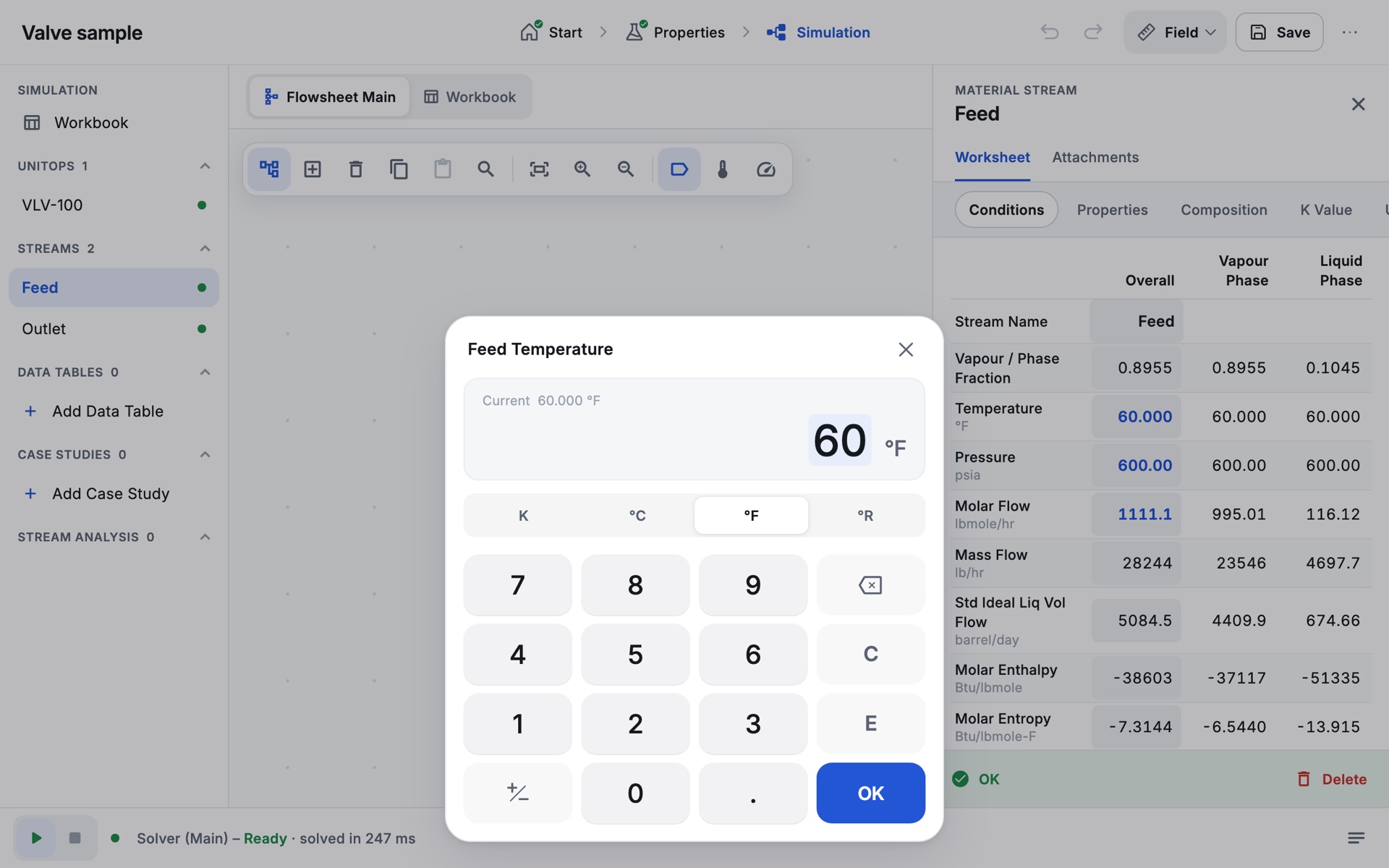
Tapping a number you can edit opens Zalosim's keypad, so you never need the phone's own keyboard for numbers.
- The top shows the field and its Current value (or Not specified).
- The unit row lets you type the value in any unit; it is converted when you tap OK, and the converted value is shown as you type.
- A value you entered before opens selected: typing a digit replaces it, while the other keys edit it.
| Key | Does | Keyboard |
|---|---|---|
| 0–9, . | Digits and the decimal point | Digits, . or , |
| ± | Changes the sign (of the exponent, after E) | - |
| E | Starts an exponent, for example 1.5E6 | E |
| ⌫ | Deletes the last character | Backspace |
| C | Clears the entry | Delete |
| OK | Enters the value | Enter |
| × or tap outside | Closes without changing anything | Esc |
Clearing a value
To remove a specification, open the field, tap C so the entry is empty, then OK. The value goes back to grey <empty> (or, for a kij, to the library value).
The keypad accepts plain numbers only, not expressions. With a keyboard, move between cells with Tab and press F2 (or Enter) to open the keypad for the focused cell.