Docs › Start here
Getting started
Install the app, activate it with your licence key, then build and solve a small case. Allow about ten minutes once the app is installed.
What you need
- An Android phone or tablet running Android 7 or later. A tablet gives you the most room, but every screen also works on a phone.
- A licence key, which looks like
ZALO-XXXX-XXXX-XXXX-XXXX. Your institution gives you one, or you can request one at zalosim.com/#request. - An email address you can open on the spot, for the 6-digit activation code.
- An internet connection, once, for activation.
Download and install
Zalosim is installed from an APK file downloaded from the website, not from an app store, so Android asks you to confirm it.
- On the device, open zalosim.com/#download in your browser and tap Download for Android. If your phone is older and the main download will not install, use the older phones link under the button instead.
- When the download finishes, tap the file in the browser's downloads list (or in your Files app).
- If Android says installs from this source are blocked, tap Settings in that message and allow your browser to install unknown apps. Then go back and tap the file again. The exact wording depends on your Android version and phone maker.
- Tap Install, then Open. Zalosim appears in your app list with its blue Z icon.
You can switch the "install unknown apps" permission off again for your browser once Zalosim is installed.
Activate
The first time you open Zalosim it shows the Activate screen. Activation ties the licence to this device and your email address.
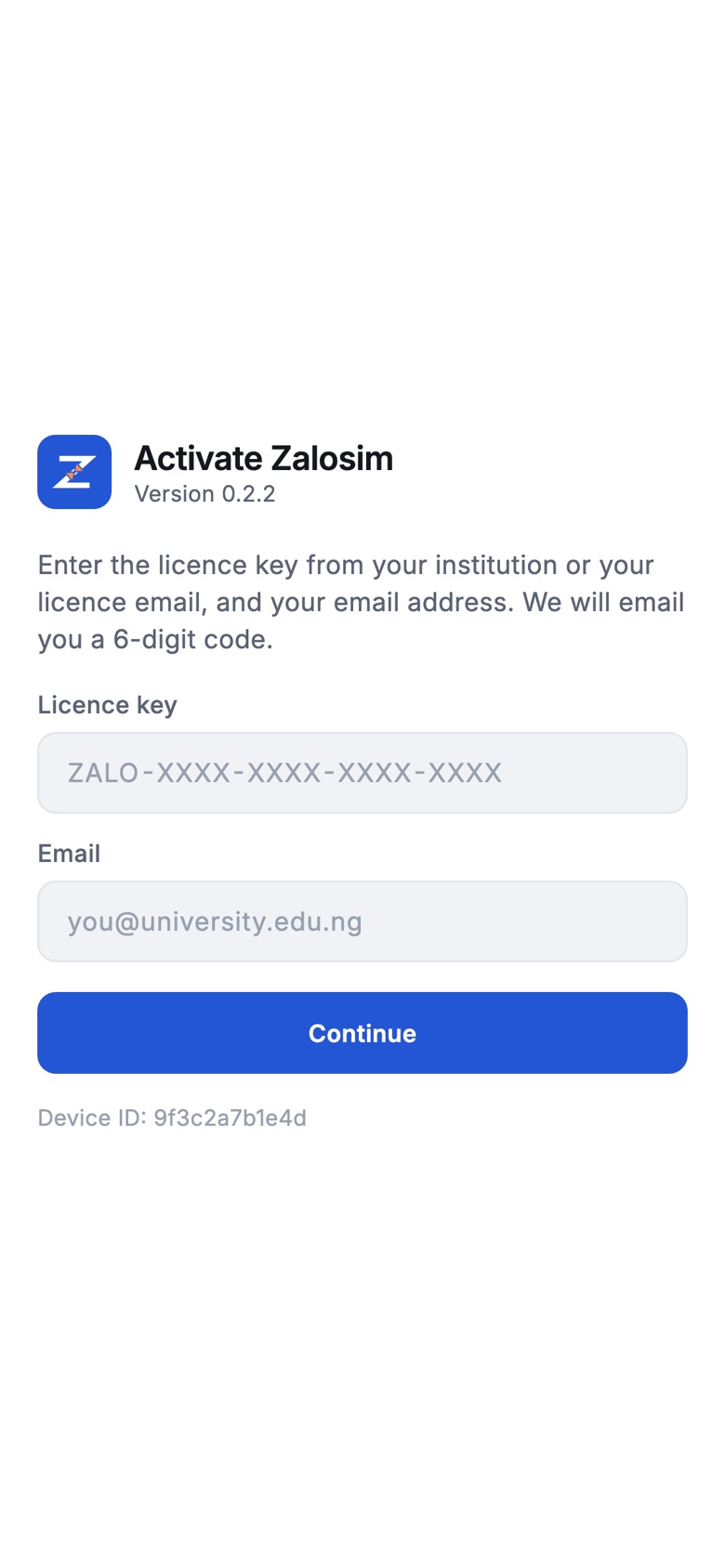
- Type your Licence key. Capitals, spaces and dashes do not matter, and the
ZALO-at the start is optional. - Type your Email. On an institution licence, use your own email address. On an individual licence, use the email the key was issued to.
- Tap Continue. Zalosim emails you a 6-digit code. It is valid for 10 minutes.
- Type the code in Code and tap Verify. If the email has not arrived, check your spam folder, or tap Send a new code. A new code cancels the old one.
- When you see Zalosim is activated, tap Start using Zalosim. From now on the app works offline.
If activation fails, the screen tells you why, for example a mistyped key, a wrong code or no free devices on the key. See FAQ: activation and Licensing and privacy.
Your first case in ten minutes
This short build lets natural gas down through a valve and shows how much it cools. It is the same case as the guided exercise Throttling natural gas, which can check each step for you.
The steps use Field units (°F, psia, lbmole/hr), which is Zalosim's default unit set. If the button at the top right of the app shows another set, tap it and choose Field.
1. Components and fluid package
- On the Start page, tap New case. You arrive in the Properties environment.
- In the library on the right, type
methin Search for and tap + beside Methane. Add Ethane, Propane and n-Butane the same way. - Open Basis-1 under Fluid Packages in the left pane and check that Peng-Robinson is selected. It is the default.
- Tap Simulation at the bottom right.
2. The feed stream
- Tap the Object palette button (the square with a plus) in the PFD toolbar. Tap Material Stream, then tap an empty spot on the PFD. Stream 1 appears and its property view opens.
- On the Conditions page, tap the Overall cell beside Temperature. A keypad opens. Type
60and tap OK. Enter Pressure 600 and Molar Flow 100 the same way. - Open the Composition page and tap Edit…. Enter mole fractions 0.85 Methane, 0.08 Ethane, 0.05 Propane and 0.02 n-Butane, then tap OK.
- The status strip at the bottom of the view turns green and reads OK: the stream is fully specified and solved. Values you typed are blue; values Zalosim calculated are black.
3. The valve
- Open the palette again, tap Valve and tap the PFD to the right of the stream. VLV-100 appears.
- On the valve's Connections page, set Inlet to 1 and Outlet to << New Stream >>. Stream 2 is created.
- Open the valve's Worksheet tab and enter a pressure of 200 in the column for stream 2.
- The solver runs by itself. The solver bar at the bottom reads Ready and the valve's status turns green.
4. Read the result
Tap stream 2 on the PFD and read its temperature on the Conditions page. The gas has cooled: its enthalpy is unchanged across the valve, so the pressure drop shows up as a fall in temperature (the Joule-Thomson effect).
Tap Save in the top bar to keep the case. The first save asks for a file name.
What next
- Learn the screens in The interface.
- Open a finished oil and gas case from the Start page, then build it yourself with a tutorial.
- Keep Keyboard shortcuts to hand if your tablet has a keyboard.