Docs › Using Zalosim
Components and fluids
Every case starts in the Properties environment, where you choose the components and the fluid package that calculates their properties.
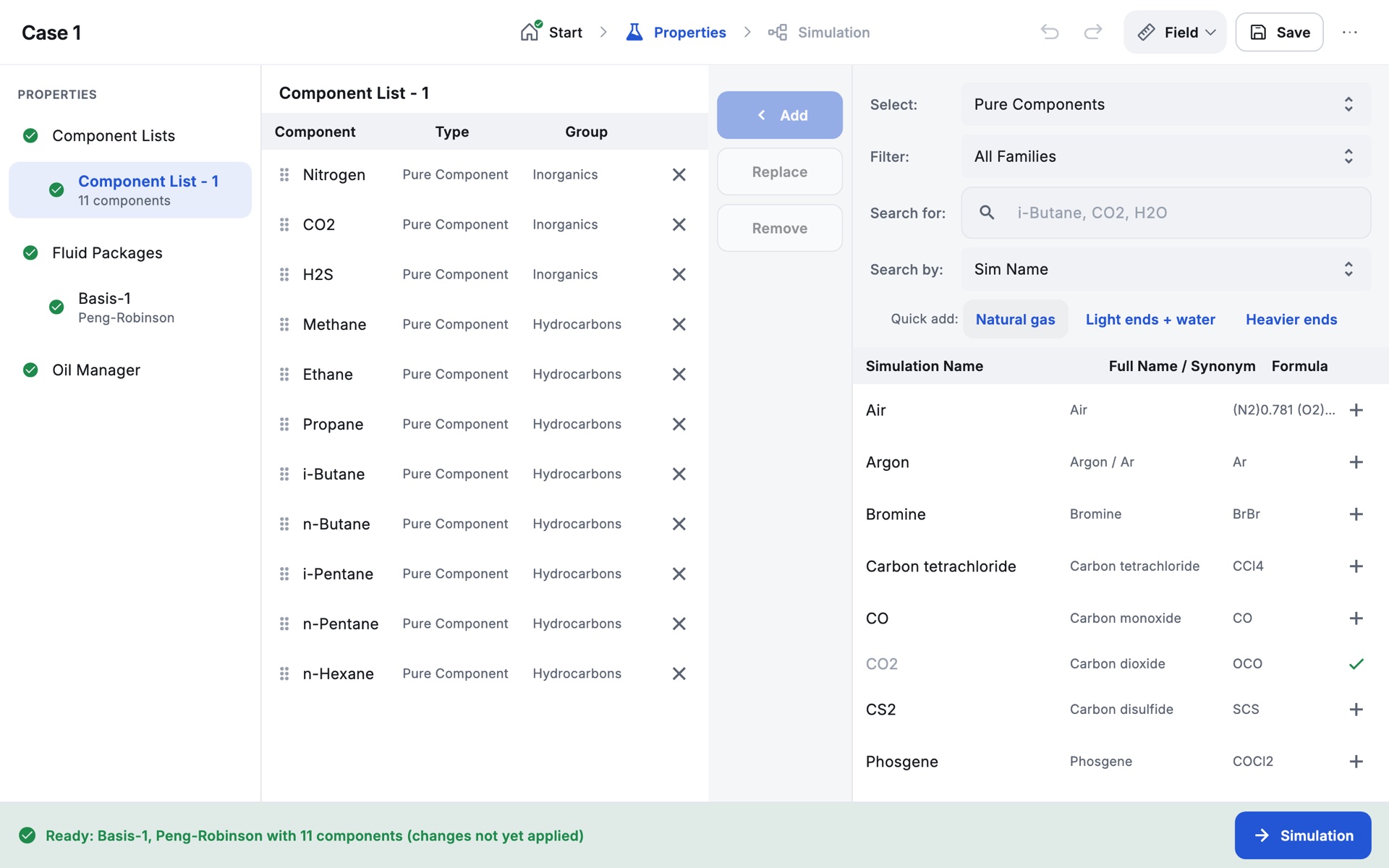
Layout
The pane on the left (PROPERTIES) lists Component Lists, Fluid Packages and the Oil Manager, each with a green tick when complete or a red cross when something is missing. The strip at the bottom says whether the basis is ready, for example Ready: Basis-1, Peng-Robinson with 11 components.
Your edits here are a draft until they are applied. They are applied when you tap Simulation (bottom right), switch package, or use Add, Copy, Export, Import or Install Oil. Until then the strip adds (changes not yet applied). The Simulation button stays disabled while the component list is empty.
Building a component list
The page has your list on the left and the library on the right.
- In Search for, type part of a name. Search by chooses Sim Name (for example i-Butane, CO2, H2O), Full Name/Synonym (Isobutane, C1, nC4) or Formula (C3H8). Filter narrows the library to one family, such as Hydrocarbons, Inorganics, Amines or Alcohols.
- Tap + on a row to add that component, or tap several rows to select them and then tap Add. Components already in the list are greyed out with a tick.
- To change the list, select a component and tap Remove, or Replace to swap it for the one selected in the library. The × on a row also removes it. Drag the handle on a row to change the order.
Three Quick add buttons add common sets in one tap:
| Button | Adds |
|---|---|
| Natural gas | Nitrogen, CO2, H2S, Methane, Ethane, Propane, i-Butane, n-Butane, i-Pentane, n-Pentane, n-Hexane |
| Light ends + water | Methane, Ethane, Propane, n-Butane, H2O |
| Heavier ends | n-Heptane, n-Octane |
The library holds 432 pure components from the ChemSep databank, listed by the short simulation names engineers use (i-Butane, n-C16, H2O). The search shows up to 120 matches at a time, so type a little more if you cannot see the one you want.
Hypothetical components
Set Select to Hypothetical to create components that are not in the databank.
- Method: Create and Edit Hypos makes one at a time with New Hypo; Create a batch of hypos generates a series from an Initial Boiling Point, Final Boiling Point and Interval with Generate Hypos.
- Hypos belong to a Hypo Group (default HypoGroup1); New Hypo Group starts another.
- In the hypo editor, give at least the Normal Boiling Pt. Molecular weight, ideal liquid density and the critical properties are estimated if you leave them blank (Twu and Lee-Kesler methods; without a density, a Watson K of 12 is assumed). Estimated values are shown in grey.
- Select hypos and tap Add to put them in the component list. Long-press a hypo to edit it.
The fluid package
Open the package (default name Basis-1) under Fluid Packages. The header reads Fluid Package: Basis-1 with a pencil to rename it. The package has six tabs: Set Up, Binary Coeffs, StabTest, Phase Order, Tabular and Notes.
Set Up: property packages
| Package | Use it for |
|---|---|
| Peng-Robinson (default) | Hydrocarbon systems and gas processing. Every starter case uses it. |
| SRK (Soave-Redlich-Kwong) | Hydrocarbons and light gases. |
| NRTL | An activity model with an ideal vapour, for alcohols, water, acids and other non-ideal liquids. |
The Options switch has two settings. The default follows common commercial-simulator conventions: enthalpy on a heat-of-formation basis, COSTALD liquid density, and library interaction parameters with missing hydrocarbon pairs estimated. DWSIM reproduces the open-source DWSIM simulator exactly (sensible enthalpy, Rackett density, Peneloux volume shift). Leave it on the default unless you are comparing with DWSIM.
Binary Coeffs
For Peng-Robinson and SRK this tab shows the matrix of binary interaction coefficients (kij). Values come from the built-in library. Tap a value to enter your own; it turns blue and applies to both i-j and j-i. Clear it (keypad C, then OK) to go back to the library value, or tap Reset to clear all your changes.
For NRTL the tab lists each pair with A12, A21 (cal/mol) and alpha. Pairs with no data are marked (no data: ideal). Estimate unknowns (UNIFAC VLE) fills in the pairs UNIFAC covers; they appear as your values, which you can change or reset.
StabTest: phases and the liquid-liquid split
Changes on this tab apply at once and the case solves again.
- Maximum Phases Allowed: 2 (vapour and one liquid, no free water) or 3 (vapour, liquid and free water; the default).
- Liquid-liquid split (full VLLE): off by default. Tick it when a case has water with oil and gas, or any second liquid such as a glycol or amine solution. Each flash then looks for a second liquid of any composition. The three-phase separator warns you if its feed flashed without a water phase and suggests this box. The three-phase and stage separation tutorials both use it.
- Method sets how thoroughly the stability test looks for extra phases: None, Low (default), Medium, All or User. With User you choose the trial phases and components to start the test from.
Phase Order, Tabular and Notes
- Phase Order decides how phases are labelled (by phase type and density, or by primary components you pick). It does not change the results.
- Tabular lets you enter liquid viscosity data points for a component; Zalosim fits ln μ = A + B/T to them.
- Notes is free text saved with the package.
Several fluid packages, export and import
Tap the Fluid Packages heading for the overview table, with Add, Edit..., Rename..., Copy, Delete, Export and Import.... Each package has its own component list.
- The flowsheet uses one package at a time, marked (Flowsheet). With two or more, pick it in Flowsheet Fluid Package. Switching moves every stream and operation to the new package, matching components by name.
- A package cannot be deleted if it is the flowsheet's package or is used by streams or operations.
- Export saves the package on this device so you can Import it into any other case. Exported packages stay on the device; they cannot be shared to another device from the app.
Oil Manager
The Oil Manager turns laboratory assay data into pseudo-components (hypotheticals) and installs the oil into a stream.
- Add an assay. Under INPUT ASSAY, tap Input Assay. Choose the Assay Data Type (TBP, ASTM D86 or ASTM D1160), the Assay Basis (liquid volume or mass), whether to use light ends and an independent density curve, and the extrapolation (linear or probability). D1160 and TBP data can be atmospheric or vacuum, with the distillation pressure.
- Enter the data. On the Distillation tab, add at least 5 points of assay percent and temperature, rising with percent. Add Light Ends (methane to n-pentane and water), Bulk Props (standard density, Watson UOPK, molecular weight) and a Density curve if you have them. The working curves and the status (Assay Was Calculated) update as you type.
- Make a blend. Under OUTPUT BLEND, tap Output Blend, add your assay with Add Assay and give its flow. Choose the molecular weight correlation (Twu, Lee-Kesler or Riazi-Daubert) and how to cut the curve: Auto Cut, User Points (a number of cuts, default 30) or User Ranges. The blend shows bulk data, a composite plot and a table of the cuts.
- Install the oil. Tap Install Oil and give a stream name. The cuts are added to the component list as hypotheticals (with the light ends), and the stream is created or updated with the oil's composition and flow. Then give the stream its temperature and pressure in the Simulation environment.
Assays and blends are saved with the case. You can also add USER PROPERTIES (for example sulfur) to carry through to streams.