Docs › Using Zalosim
Streams
Streams carry material and energy between operations. This page covers what a feed stream needs, how to enter it, and how to read what Zalosim calculates.
Material and energy streams
- A material stream carries a fluid with a composition, flow, temperature and pressure. Add one from the palette (Material Stream, or F11), or let an operation create it when you connect a port to << New Stream >>. New streams are numbered 1, 2, 3 and so on; rename them as you like.
- An energy stream carries a duty or power: a heater's heat, a pump's or compressor's power, a column's condenser and reboiler duties. Operations create their energy streams for you (Q-100, Q-101…). You enter a duty on the operation, not on the energy stream; the energy stream view shows the Heat flow and which operation it is attached to.
A feed is a material stream that no operation produces. A product is a stream that an operation calculates. What you can type depends on which one it is.
Specifying a feed stream
A feed stream solves when it has three things:
- a composition;
- a flow: molar, mass or standard ideal liquid volume flow (one of them; typing another replaces it);
- a state: two of temperature (T), pressure (P) and vapour fraction (VF), or pressure with molar enthalpy (H) or molar entropy (S).
The accepted pairs are T and P, T and VF, P and VF, P and H, P and S. Vapour fraction 0 with a pressure gives the bubble point; vapour fraction 1 gives the dew point. Leave the other values empty: Zalosim calculates them.
Until the stream has everything, its status strip is amber and names what is missing:
| Status | What to do |
|---|---|
| Unknown Compositions | Enter the composition (Composition page, Edit…). |
| Unknown Pressure / Unknown Temperature | Give a second state variable. H or S only work together with P. |
| Unknown Flow | The state is known but there is no flow. Enter one flow. |
| Over-specified: give only two of T, P, VF, H, S | Shown in red. Clear one value (keypad C, then OK). |
| Not calculated | A product stream whose operation has not solved yet. Look at that operation's status. |
Entering the composition
- Open the stream's Composition page and tap Edit…. (The button only appears on feed streams.)
- Choose the COMPOSITION BASIS: Mole Fractions, Mass Fractions, Liq Volume Fractions, Mole Flows, Mass Flows or Liq Volume Flows. Switching converts what you have already typed.
- Type a value for each component. The Total turns amber, and the values red, while fractions do not add up to 1.
- Tap OK. Fractions are normalised for you, so pressing Normalize first is optional. With a flow basis, OK also sets the stream's total flow.
Erase clears every value and Equalize Composition gives every component the same fraction. On the Composition page itself you can switch the display between mole and mass fractions.
Typing on a product stream
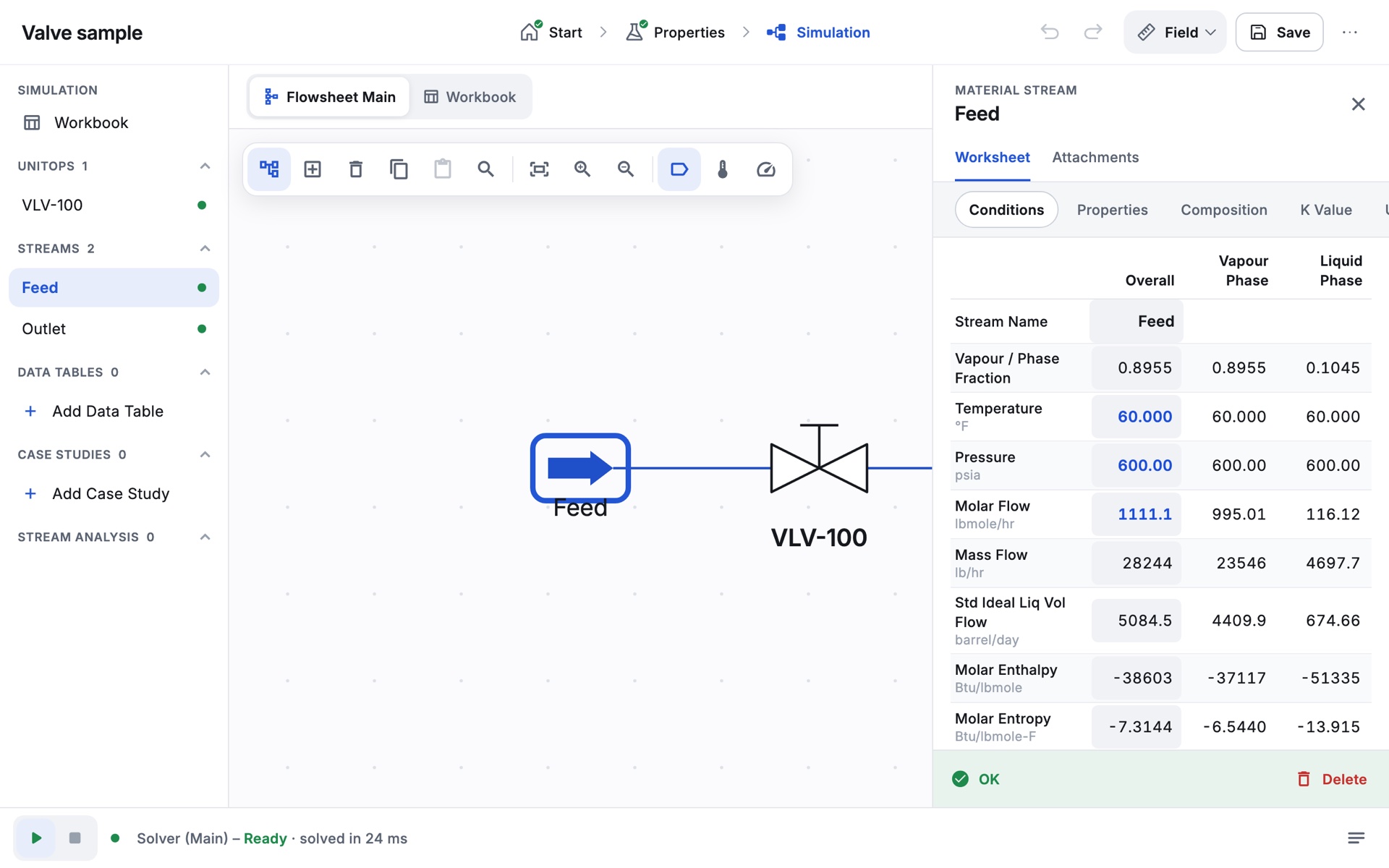
Some outlet conditions can be typed straight onto the product stream (on its Conditions page or in the operation's Worksheet tab). Zalosim stores them as the operation's specification and shows them in blue:
| Producing operation | You can type on its outlet |
|---|---|
| Heater, Cooler | Temperature or vapour fraction. A pressure is accepted once the inlet pressure is known, and is stored as the pressure drop. |
| Valve, Pump, Compressor, Expander, Pipe Segment | Pressure |
| Heat Exchanger | Temperature of either outlet, once both inlet temperatures are known (it becomes the exchanger's specification) |
| Balance | Two of temperature, pressure and vapour fraction |
Flows, enthalpy and entropy cannot be typed on a product stream.
Colour conventions
| You see | It means |
|---|---|
| Blue, bold value | You entered it (a specification). |
| Black value | Zalosim calculated it. |
| Grey <empty> | Not known yet. |
| Light grey cell background | The field can be edited. Cells without a background are read-only. |
| Green status, OK | Solved. |
| Amber (orange) status | Information is missing (under-specified). The text says what. |
| Red status | An error, such as an over-specification or a failed calculation. |
| Grey status | The operation is ignored. |
On the PFD the same states show on the objects. An operation's outline is drawn thicker in amber or red until it solves. A material stream's arrow is dark when the stream is solved and pale when it is not. Energy streams are red when their duty is known and purple when it is not. The navigator pane uses green, amber, red and grey dots.
The stream worksheet
A material stream's property view has two tabs.
Worksheet tab
- Conditions: Stream Name, Vapour / Phase Fraction, Temperature, Pressure, Molar Flow, Mass Flow, Std Ideal Liq Vol Flow, Molar Enthalpy, Molar Entropy, Heat Flow, Liq Vol Flow @Std Cond and the Fluid Package. Columns show the Overall stream and, when present, the Vapour Phase and Liquid Phase.
- Properties: appears once the stream is solved. Molecular weight, densities, actual volume and gas flows, heat capacities, lower and higher heating values, phase fractions, Cp/Cv, Z factor, viscosity, thermal conductivity, surface tension, and the partial pressure of CO2 when CO2 is present. Some rows are given per phase only.
- Composition: mole or mass fractions per phase, and Edit… on feeds.
- K Value: the K value (y/x) of each component, for two-phase streams.
- User Variables and Notes.
Attachments tab
- Unit Ops: which operations the stream feeds or comes from, and on which port.
- Analysis: stream analyses such as the phase envelope (see Analysis).
The Workbook
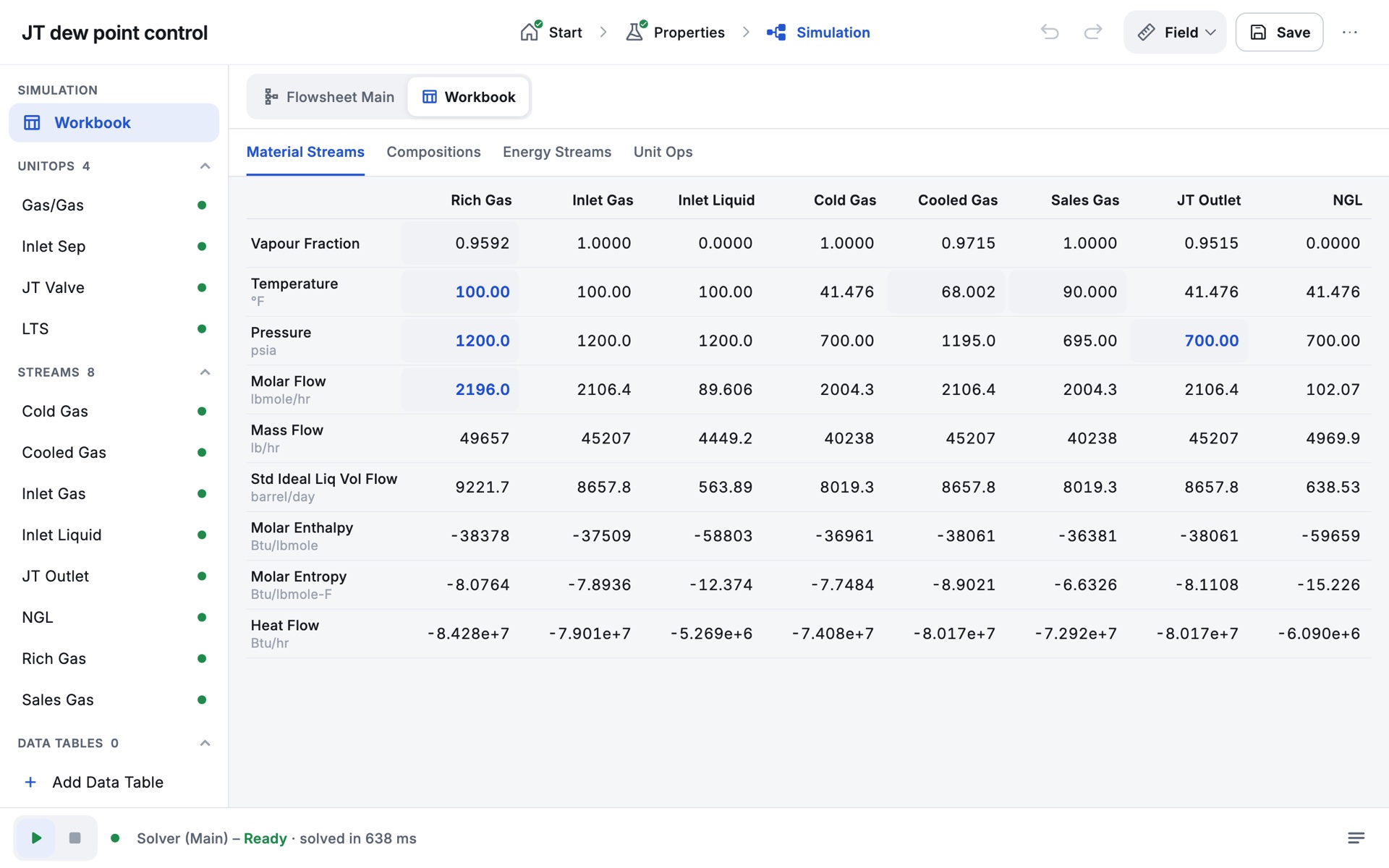
The Workbook (document tab next to Flowsheet Main, or Ctrl+W) shows the whole case as tables:
| Tab | Shows | Editable |
|---|---|---|
| Material Streams | One column per stream: vapour fraction, temperature, pressure, molar flow, mass flow, std ideal liquid volume flow, molar enthalpy, molar entropy, heat flow. | Vapour fraction, temperature, pressure and molar flow on feeds; T, P and VF on products where the operation allows it |
| Compositions | Mole fraction of each component in each stream. | No |
| Energy Streams | Heat flow and the operation each is attached to. | No |
| Unit Ops | Name, type, feeds, products, Ignored and status of every operation. | The Ignored tick box. Add UnitOp adds an operation; View UnitOp or a long press opens one. |
To print the Workbook's numbers, use Report (PDF), which includes every stream; see PDF report.